You’ve seen the padlock icon in your browser’s address bar thousands of times. You know it means the connection is “secure.” But secure against what, exactly? And who decided to trust this website in the first place?
The answer involves digital signatures, a global hierarchy of trusted organizations, and a problem that turns out to be surprisingly hard: how do you prove who you are to a complete stranger, over the internet, in milliseconds?
The core problem: identity on the internet
When you type yourbank.com into a browser, your computer connects to a server somewhere in the world. That server claims to be your bank. But how does your browser know it isn’t an impostor?
A username and password don’t help here — you haven’t logged in yet. IP addresses can be spoofed. Domain names can be hijacked. What the internet needed was a way for a server to carry unforgeable proof of its identity — something like a passport, but one that’s mathematically impossible to fake.
That’s what an SSL certificate is.
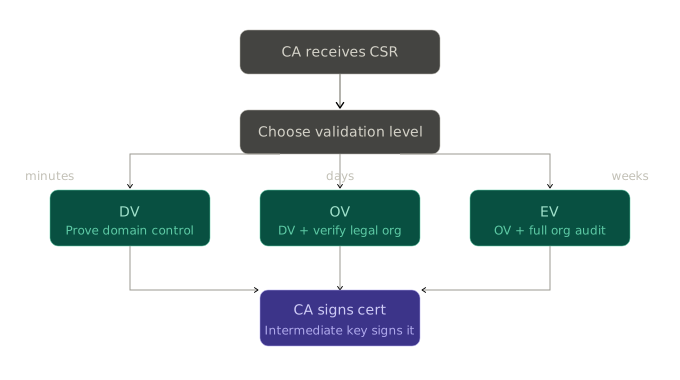
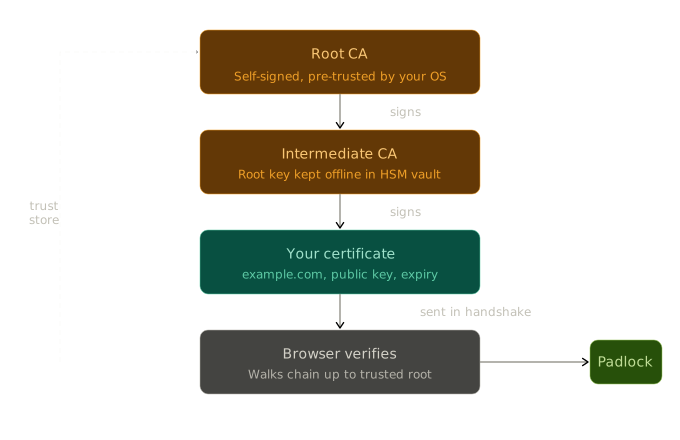
How to read the diagrams in this post: Three diagrams accompany this article. The first shows how a CSR is assembled from its ingredients. The second shows the CA’s validation and signing process. The third shows the trust chain a browser walks to verify your certificate.
The key pair: a lock and its only key
At the heart of every SSL certificate is a key pair — two large numbers with a special mathematical relationship.
Think of them like a padlock and its unique key:
- The public key is the open padlock. You can hand copies to anyone. Anyone can click it shut.
- The private key is the only key that opens it. It never leaves your possession.
If someone wants to send you a secret message, they lock it with your public padlock. Only you — with your private key — can open it. And crucially, if you lock something with your private key, anyone with your public key can verify it came from you. That second trick is called a digital signature, and it’s what makes certificates work.
Your web server generates this pair and keeps the private key locked away. What it needs next is a way to prove, to the wider world, that its public key genuinely belongs to the domain it claims.
The certificate: a signed statement of identity
A certificate is essentially a document that says:
“The public key enclosed in this document belongs to
example.com. Signed, a Certificate Authority you trust.”
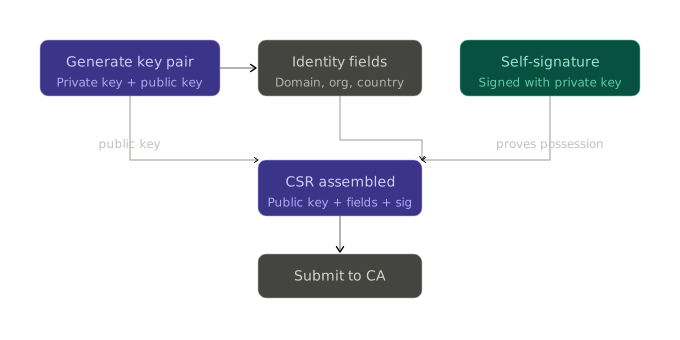
It contains your domain name, your public key, an expiry date, and — most importantly — a digital signature from a trusted third party called a Certificate Authority (CA).
Before a CA will sign your certificate, they make you prove you actually own the domain. The most common method is simple: they tell you to place a specific file on your website or add a specific record to your domain’s DNS settings. If you can do that, you control the domain. This check is called Domain Validation (DV), and it’s what free services like Let’s Encrypt use to issue certificates in seconds.
More thorough checks exist too. Organization Validation (OV) verifies your company’s legal existence. Extended Validation (EV) goes even further, confirming your organization’s physical address, phone number, and operational status. Higher validation used to trigger a green bar in browsers, though most browsers have moved away from visually distinguishing them.
The trust chain: trusted all the way up
Here’s where it gets elegant. Your browser doesn’t know every Certificate Authority in the world. So how does it know whether to trust the CA that signed your certificate?
The answer is a hierarchy called the Public Key Infrastructure (PKI), and it works like a chain of vouching:
Root CAs sit at the top. These are a small number of organizations — DigiCert, Let’s Encrypt, Comodo, and a handful of others — whose trustworthiness has been independently audited by browser makers (Google, Apple, Mozilla, Microsoft). Their certificates are baked directly into your operating system and browser when it ships. You trust them because your OS vendor decided to, after doing the vetting on your behalf.
Intermediate CAs sit in the middle. Root CAs rarely sign certificates directly. Instead, they sign a smaller set of intermediate certificates and then lock the root private key away in a vault — literally offline, often in a physically secured facility. This way, if an intermediate CA is ever compromised, it can be revoked without replacing the root. It’s a containment strategy.
Leaf certificates sit at the bottom. This is your website’s certificate — signed by an intermediate, which was signed by a root that your browser already trusts.
When your browser connects to a website, it receives the site’s certificate and walks this chain upward: “Who signed this? Do I trust them? Who signed their certificate? Do I trust that?” It keeps going until it hits a root it recognizes. If the chain is unbroken and every signature checks out, the padlock appears.
What happens when you connect
The whole system comes together in a process called the TLS handshake, which takes a fraction of a second before any page loads.
In brief: your browser and the server agree on how to communicate, the server presents its certificate, your browser verifies the chain, and both sides use some clever mathematics to establish a private encryption key for the session. No one eavesdropping on the connection can derive that key, even if they recorded every byte of the exchange.
The certificate answers the who question: this server is genuinely example.com. The key exchange answers the howquestion: here’s a secret code only the two of you know. Together they give you both authentication and encryption— the two things the padlock actually represents.
Why certificates expire
You might have noticed that SSL certificates aren’t permanent — they expire, typically after one year or 90 days (Let’s Encrypt uses the shorter window deliberately, to encourage automation).
The main reason is that circumstances change. A company might lose control of a private key. A CA might make a mistake in their validation process. A certificate should have a limited lifespan so that any errors are naturally corrected over time, rather than living forever.
When a certificate needs to be killed early — say, because a private key was stolen — the CA can revoke it. Browsers check revocation status before trusting a certificate, either by consulting a live list from the CA or by having the server include a fresh revocation check inside the handshake itself.
What if the intermediate certificate is missing?
If you visit a website and the server only sends its own certificate without the intermediate, your browser doesn’t immediately give up. Most desktop browsers will attempt something called AIA fetching — the leaf certificate contains a hidden URL in a field called the Authority Information Access extension, pointing to where the intermediate can be downloaded. The browser quietly fetches it in the background, completes the chain, and shows the padlock as if nothing was wrong.
So for many visitors, a misconfigured server goes completely unnoticed. But it comes with real costs. That background fetch adds a small but measurable delay to every new connection. More importantly, it is not universally supported — many mobile browsers, command-line tools like curl, and corporate network proxies skip AIA fetching entirely and simply reject the connection. Safari on iOS and macOS has historically been stricter about this than Chrome or Firefox, meaning a missing intermediate can silently break your site for a significant slice of your audience.
The root certificate is a different matter entirely. Browsers never expect the server to send it, and in fact ignore it if it does. The root lives in your operating system’s trust store, and the browser always uses its own local copy to anchor the chain. A server that omits the root is not misconfigured — that is exactly how it is supposed to work.
The takeaway: always send the full chain (leaf plus intermediates), never worry about the root.
If you want to verify what your server is actually sending, the openssl s_client command from the bonus section will show you — count the BEGIN CERTIFICATE blocks in the output. One block means only the leaf was sent. Two or three means the intermediates are included.
The one thing worth remembering
The entire system rests on one secret: the private key. As long as only you hold it, your certificate is trustworthy. If it leaks, an attacker can impersonate your site to anyone, perfectly — valid certificate and all. That’s why private keys are treated with extreme care, never transmitted, never logged, and often stored in dedicated hardware designed specifically to prevent extraction.
Everything else — the CA hierarchy, the chain of signatures, the handshake protocol — is infrastructure built around that one secret, making sure the right person holds it and the world can verify that they do.
The padlock is small. The system behind it is not.
Bonus: a few openssl commands for the curious
You don’t need to run any of this to understand SSL — but if you want to peek inside a real certificate, these commands are your X-ray machine.
Generate a key and CSR in two commands:
openssl ecparam -name prime256v1 -genkey -noout -out private.key
openssl req -new -key private.key -out request.csr \
  -subj "/CN=example.com/O=My Org/C=US"
Read what’s inside your CSR — you’ll see the public key, your identity fields, and the signature algorithm:
openssl req -text -noout -in request.csrInspect any website’s live certificate directly from the terminal:
openssl s_client -connect example.com:443 -showcertsThis shows the full certificate chain sent by the server — leaf first, then intermediates. If a server is misconfigured and only sends the leaf, you’ll notice the chain stops early.
Decode a certificate file to read its fields:
openssl x509 -text -noout -in certificate.crtLook for the Subject Alternative Name extension — that’s where the browser actually checks your domain name. The older Common Name field is largely ignored by modern browsers.
Check when a certificate expires:
openssl s_client -connect example.com:443 2>/dev/null \
  | openssl x509 -noout -dates
Useful for monitoring — if notAfter is approaching and you haven’t set up auto-renewal, you have a deadline.
Check if certificates has the full trusted chain:
openssl s_client -connect example.com:443 -showcerts 2>/dev/nullIn the output, each certificate in the chain is wrapped between -----BEGIN CERTIFICATE----- and -----END CERTIFICATE-----.
1 block → only the leaf cert was sent. The chain is incomplete — intermediates are missing.
2 blocks → leaf + one intermediate. Usually correct for most CAs.
3 blocks → leaf + two intermediates (or intermediate + root). Fine, though sending the root is redundant since browsers ignore it in favor of their own trust store copy.